Setting Up Google Analytics and Tag Manager
1. Switch to tab Google Tag Manager"
2. Click "Create Account"

3. Click the "Account Name" field.

4. Type "Roselawn"
5. Click the "Container name" field.

6. Click the "Container name" field.

7. Press [[ctrl]] + [[v]]
8. Click the "Container name" field.

9. Type " [[Backspace]]"
10. Click "For use on desktop and mobile web pages"
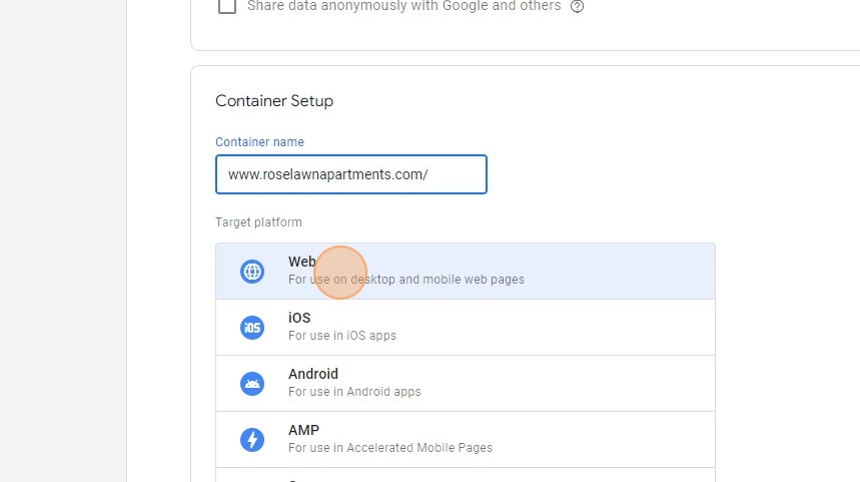
11. Click "Create"

12. Click here.

13. Click "Yes"

14. Click "OK"

15. Switch to tab Analytics"
16. Click "Create
arrow_drop_down"

17. Click "Account"

18. Click the "Account name (Required)" field.

19. Type "Roselawn"
20. Click this checkbox.

21. Click "Next"

22. Click the "Property name (Required)" field.

23. Type "Roselawn Apartments"
24. Click here.
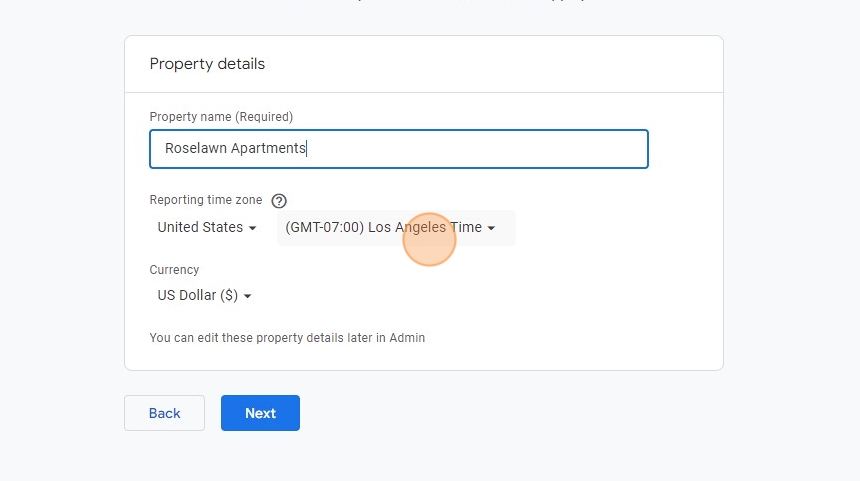
25. Click "(GMT-05:00) Chicago Time"

26. Click "Next"
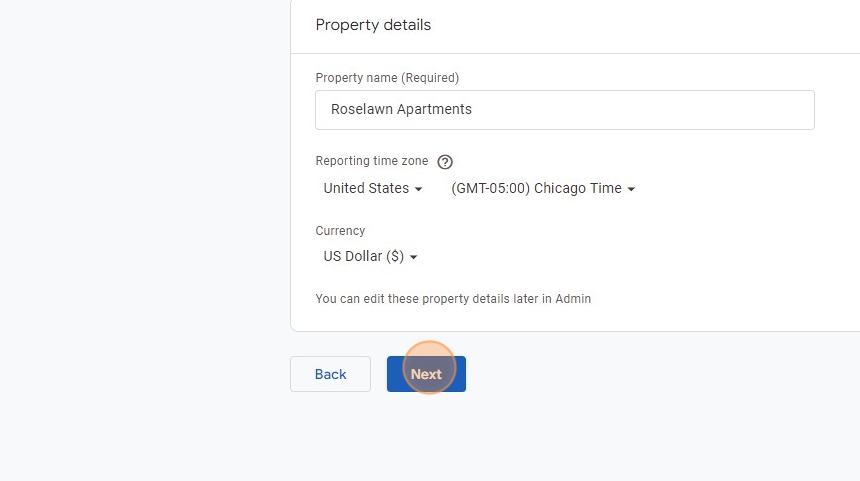
27. Click "Select one"
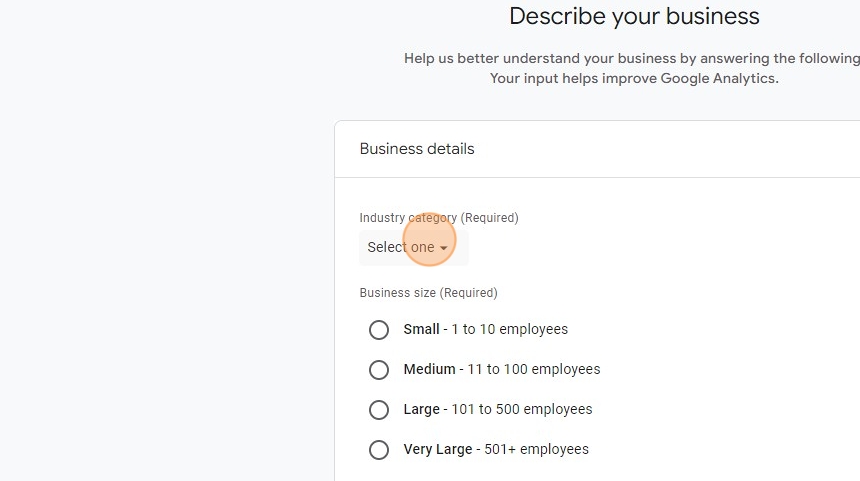
28. Click "Real Estate"

29. Click the "Small - 1 to 10 employees" field.

30. Click here.

31. Click this checkbox.

32. Click this checkbox.

33. Click this checkbox.

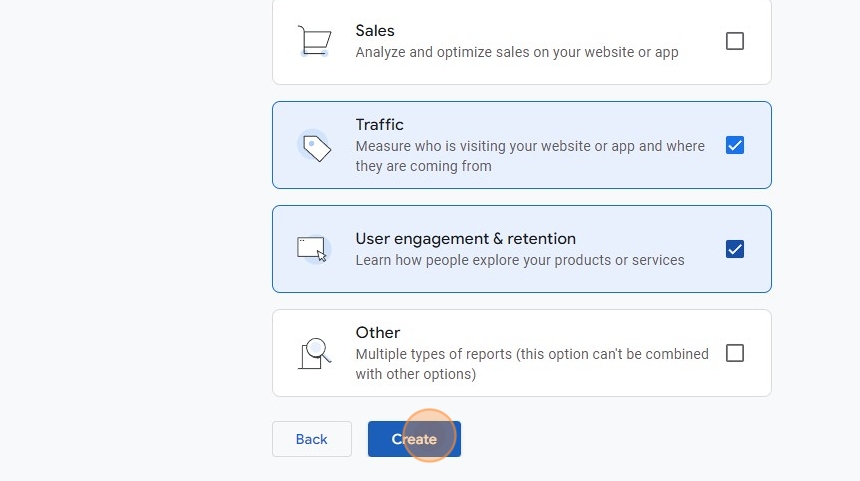
34. Click "Create"
35. Click the "I also accept the Data Processing Terms as required by GDPR. Learn more" field.

36. Click "To use Google Analytics you must first accept the terms of service agreement for your country / region.
United States
arrow_drop_down
I also acc..."
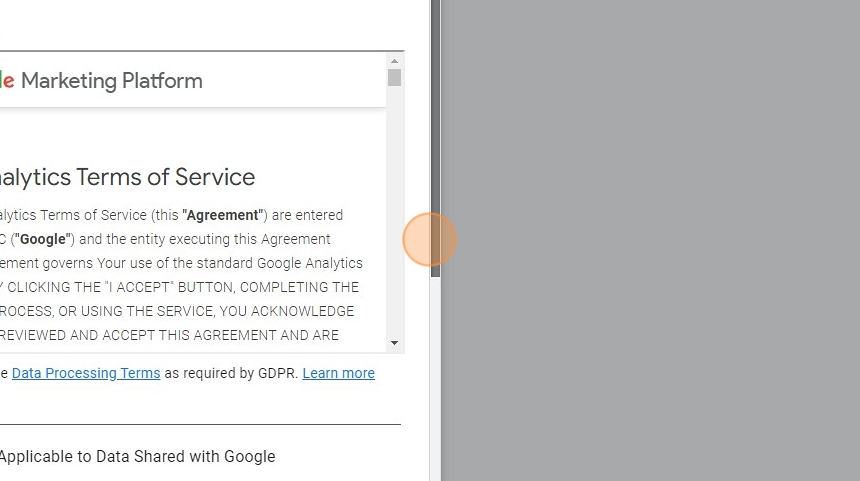
37. Click the "I accept the Measurement Controller-Controller Data Protection Terms for the data that I share with Google." field.

38. Click here.

39. Click here.

40. Click the "www.mywebsite.com" field.

41. Press [[ctrl]] + [[v]]
42. Click the "www.mywebsite.com" field.
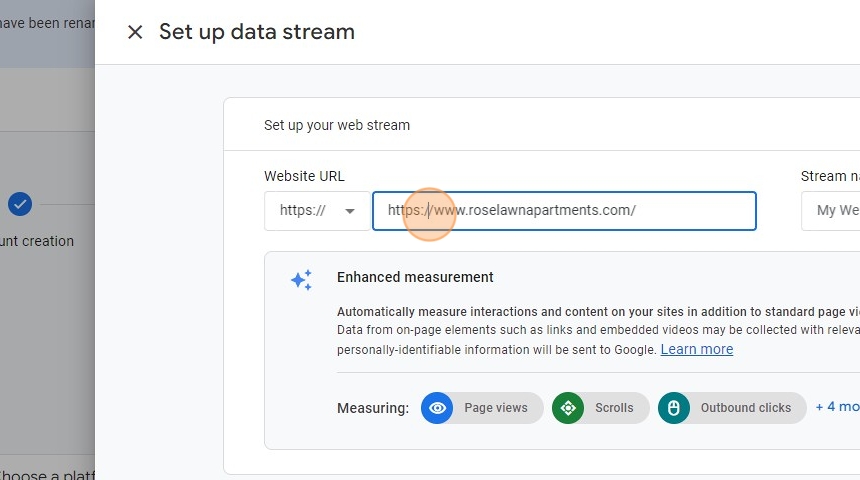
43. Type " [[Backspace]] [[delete]]"
44. Click the "My Website" field.

45. Type "Roselawn Website"
46. Click "Create & continue"

47. Click here.

48. Press [[ctrl]] + [[c]]
49. Switch to tab Setup - Bellaire Multifamily Property Management LLC"
50. Click "Global"

51. Click "Edit"

52. Click this text field.

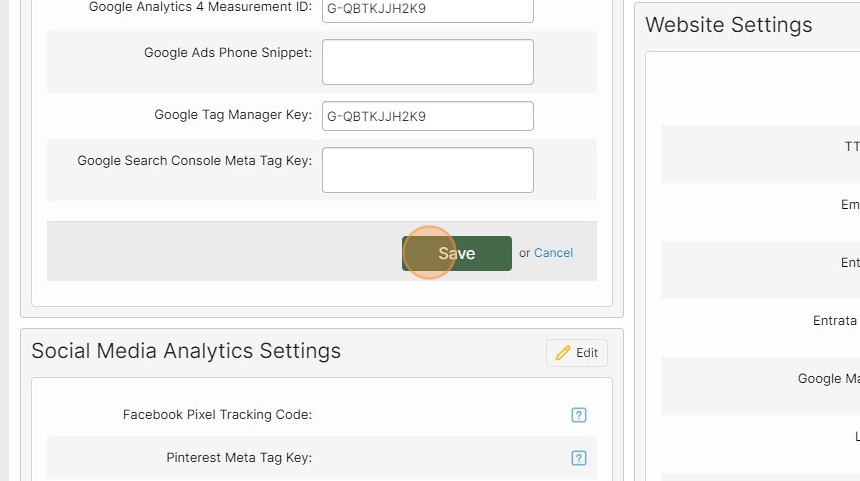
53. Press [[ctrl]] + [[v]]
54. Click here.

55. Click this text field.
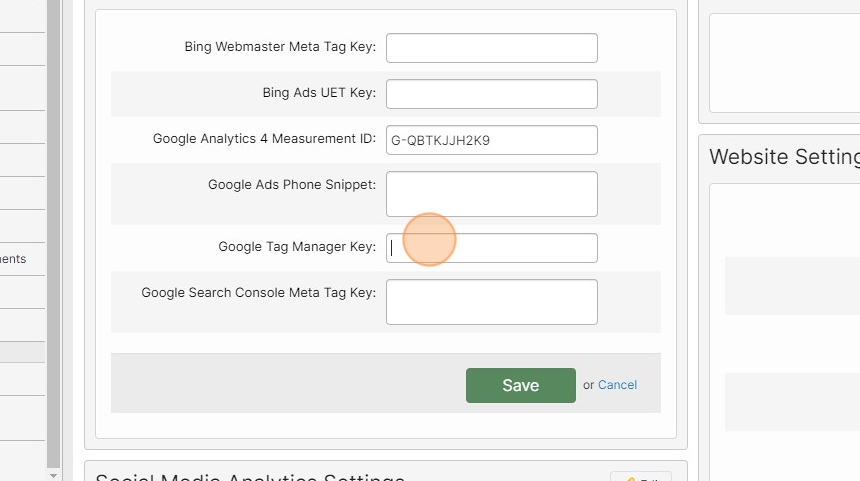
56. Press [[ctrl]] + [[v]]
57. Click this button.
58. Switch to tab Google Tag Manager"
59. Click "Add a new tag"

60. Click here.

61. Click "Google Analytics"

62. Click "Load the Google tag associated with your Google Analytics stream"

63. Click this text field.

64. Press [[ctrl]] + [[v]]
65. Click here.

66. Click "All Pages"

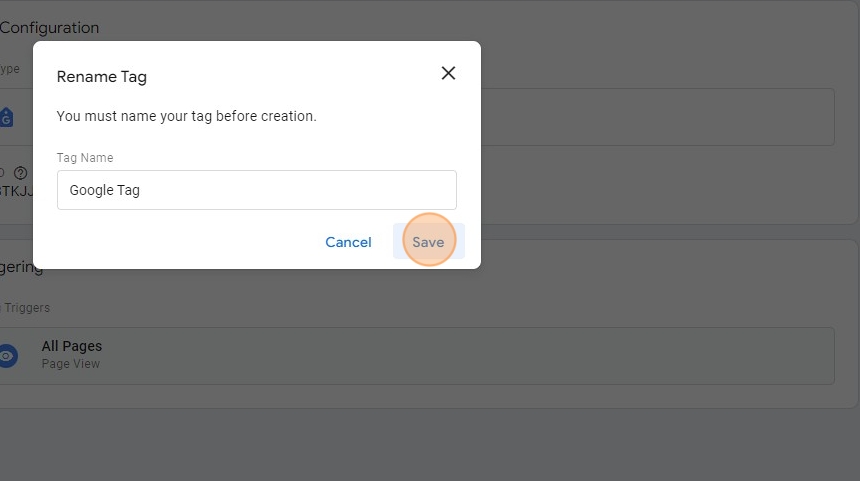
67. Click "Save"

68. Click "Save"
69. Click "Submit"
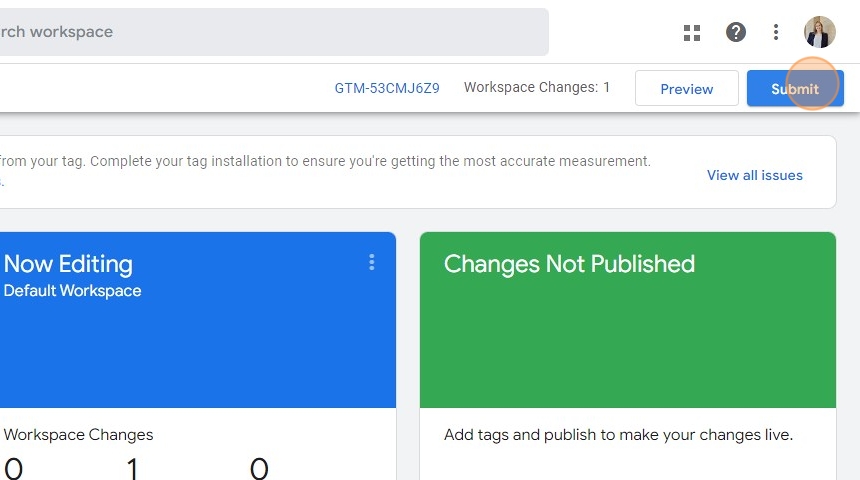
70. Click "Publish"

71. Click "Skip"

72. Click "Close screen"

73. Switch to tab Analytics"
74. Click "Test installation"

75. Click "Close screen"
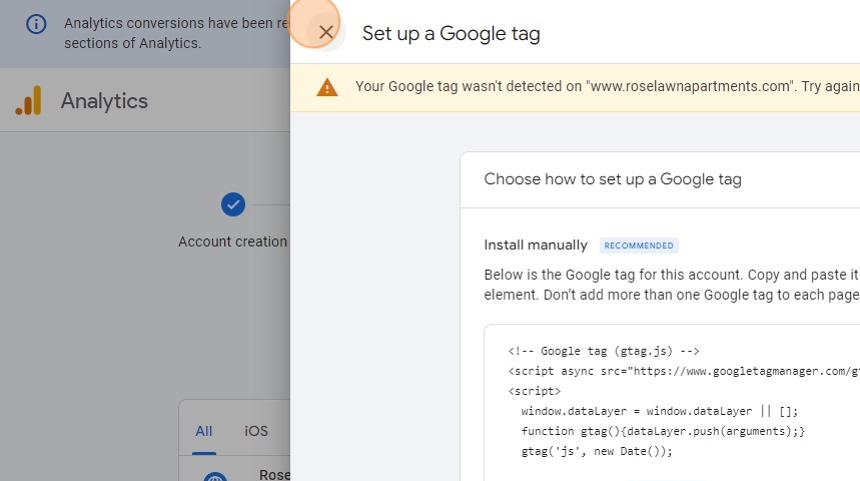
76. Click here.

77. Click "Next"

78. Click "Continue to Home"

Was this article helpful?
That’s Great!
Thank you for your feedback
Sorry! We couldn't be helpful
Thank you for your feedback
Feedback sent
We appreciate your effort and will try to fix the article