how to: birdeye social posting
Birdeye allows you to publish or schedule posts across Facebook, X (Twitter), Instagram, LinkedIn, Google Business, and YouTube — all within your Birdeye account. Before creating a post, ensure all your social channels are integrated.
setting up social | publishing & posting
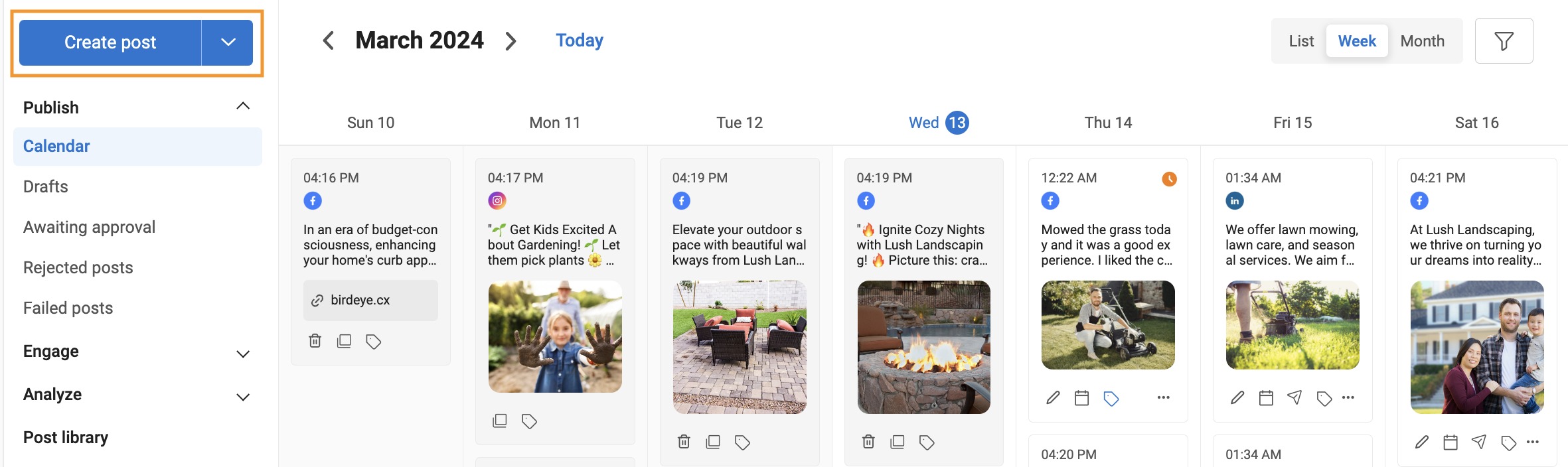
- Click the “Social” tab.
- Select “Create Post.”
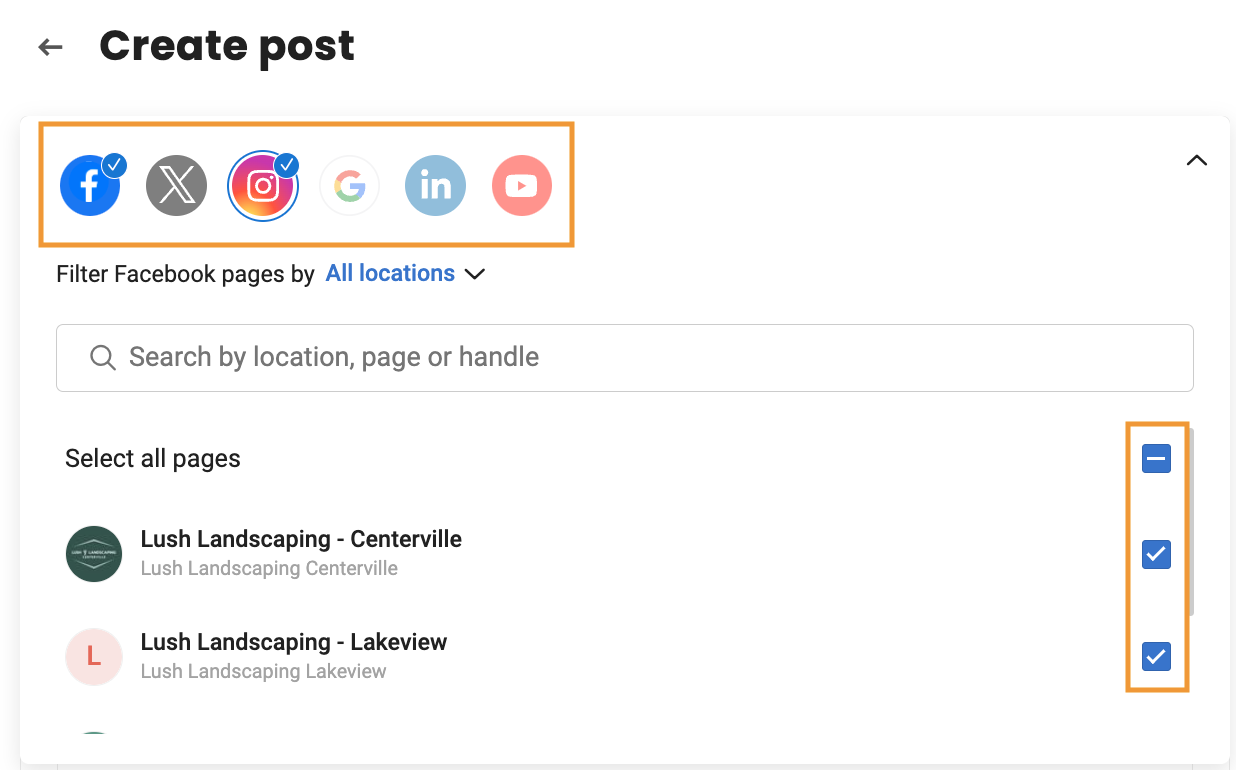
- Select the locations and pages you want to publish on from the dropdown.
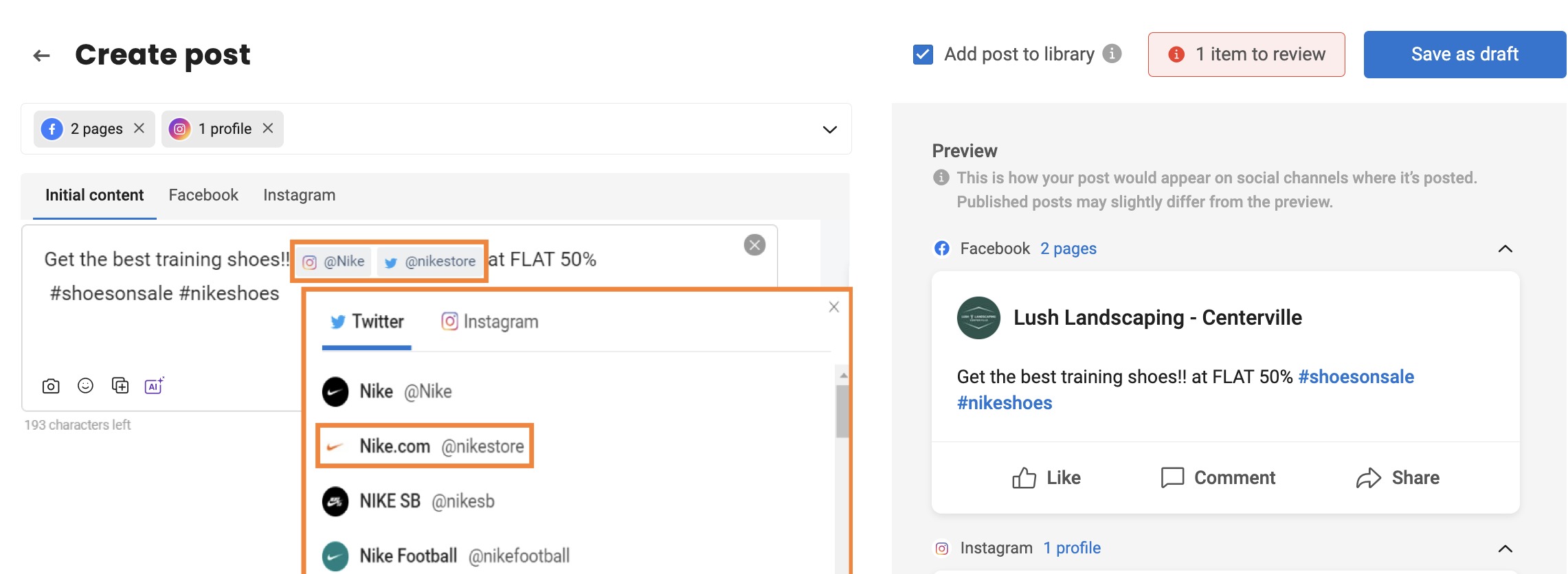
- Add your content in the text box.
- Use @ to mention someone or a brand.
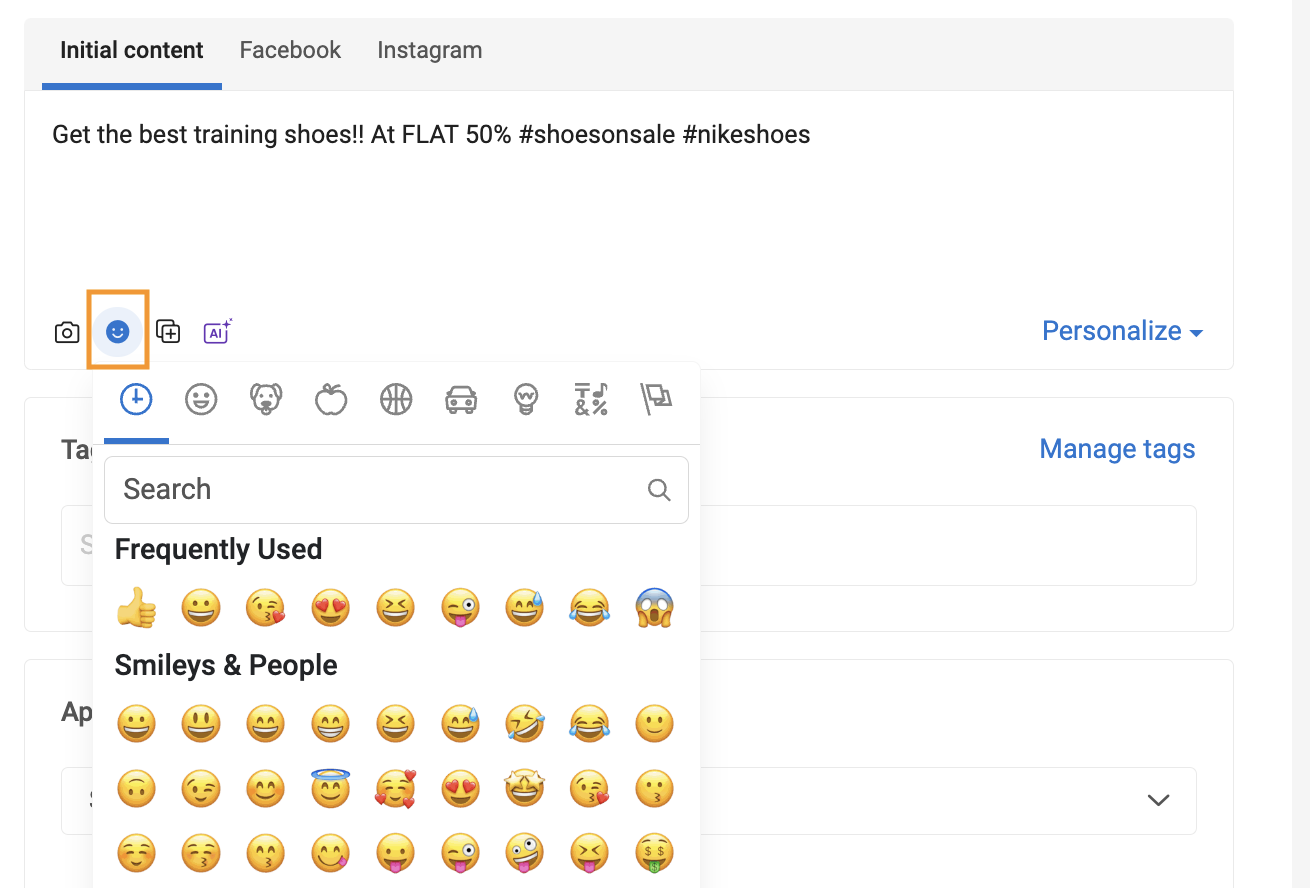
- Add emojis by clicking the emoji icon.
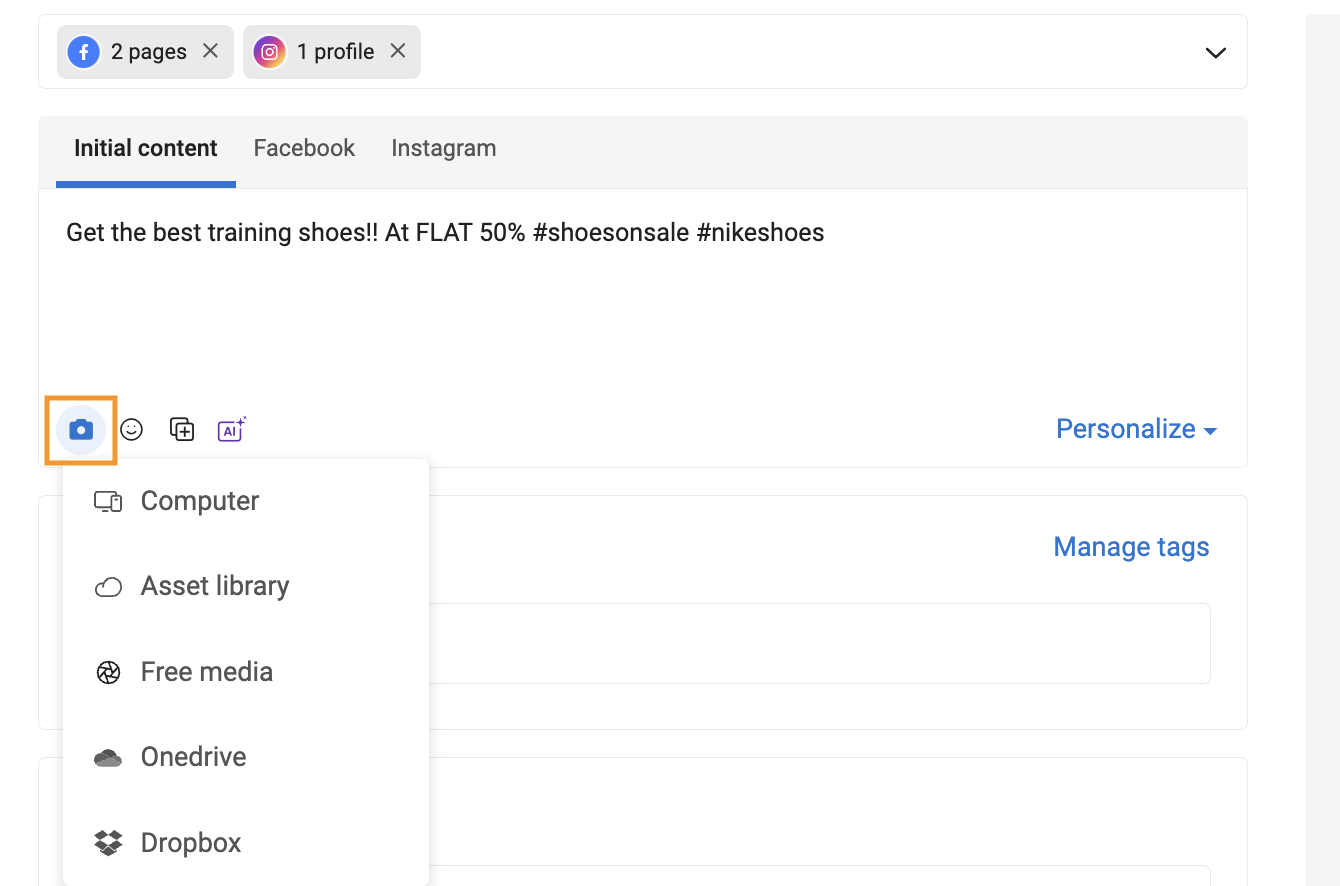
- Attach media by clicking the camera icon. Upload from your computer, asset library, or cloud apps like OneDrive and Dropbox.
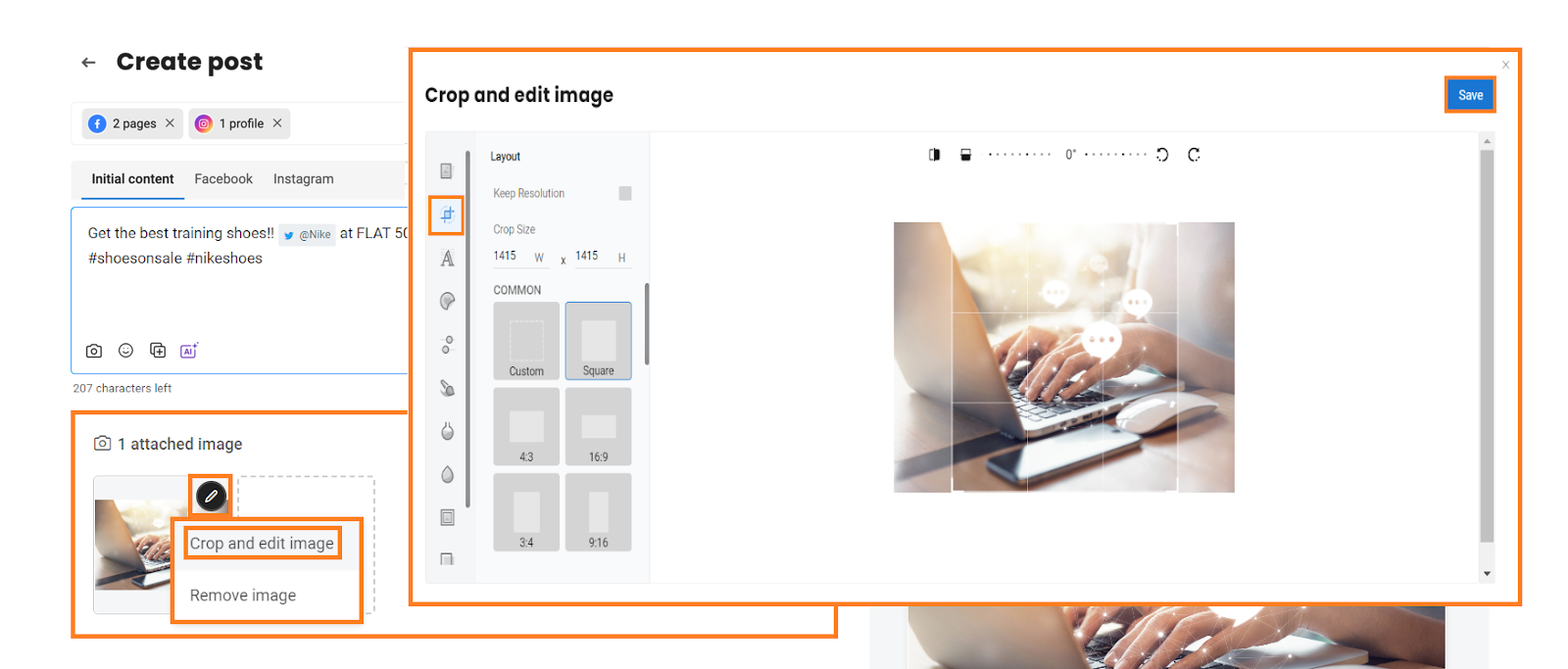
- After adding an image, click the pencil icon to crop or edit it. Save your changes.
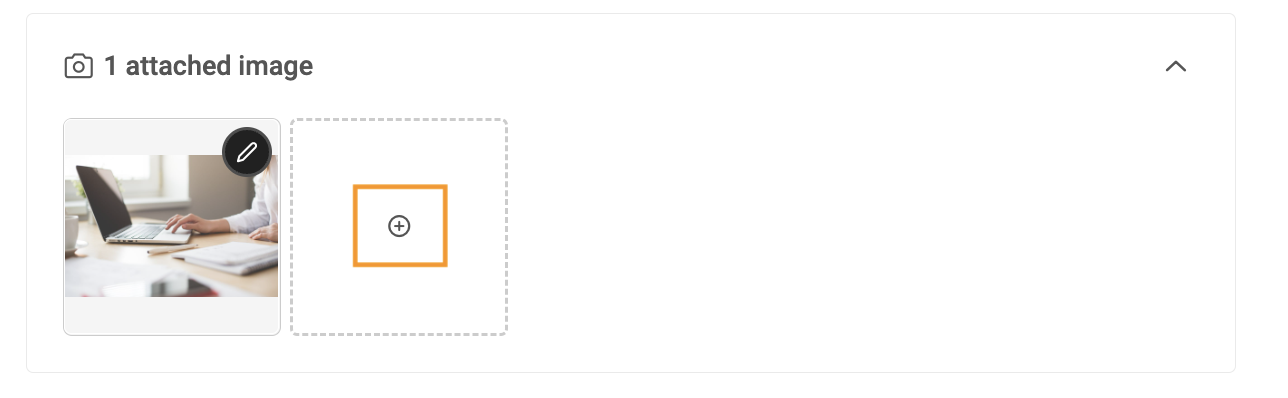
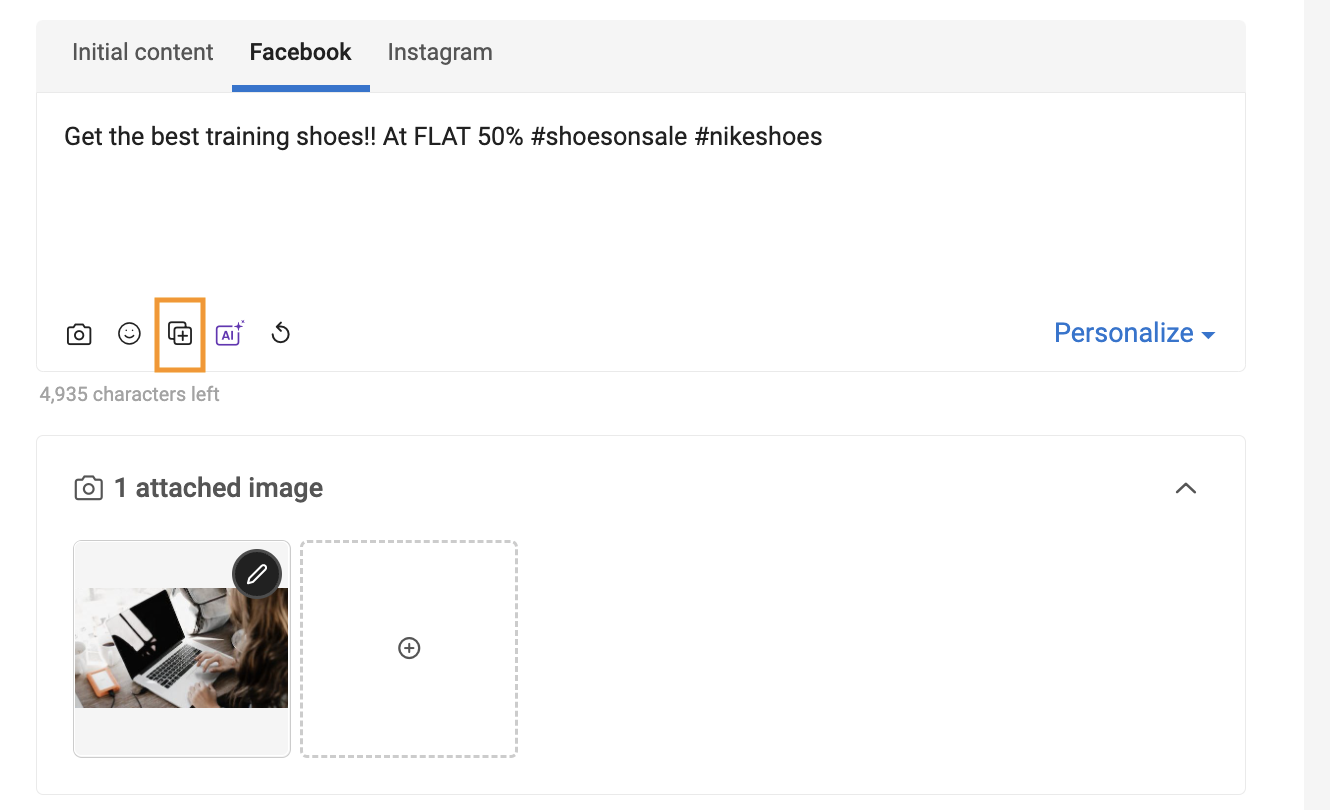
- To upload more images, click the + icon → Upload images or Design on Visual Editor.
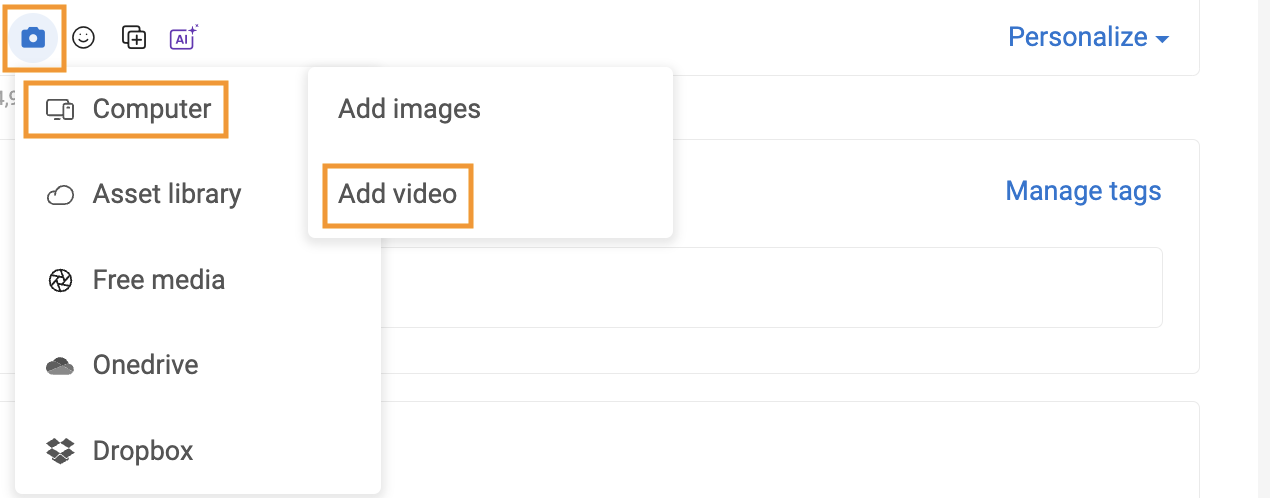
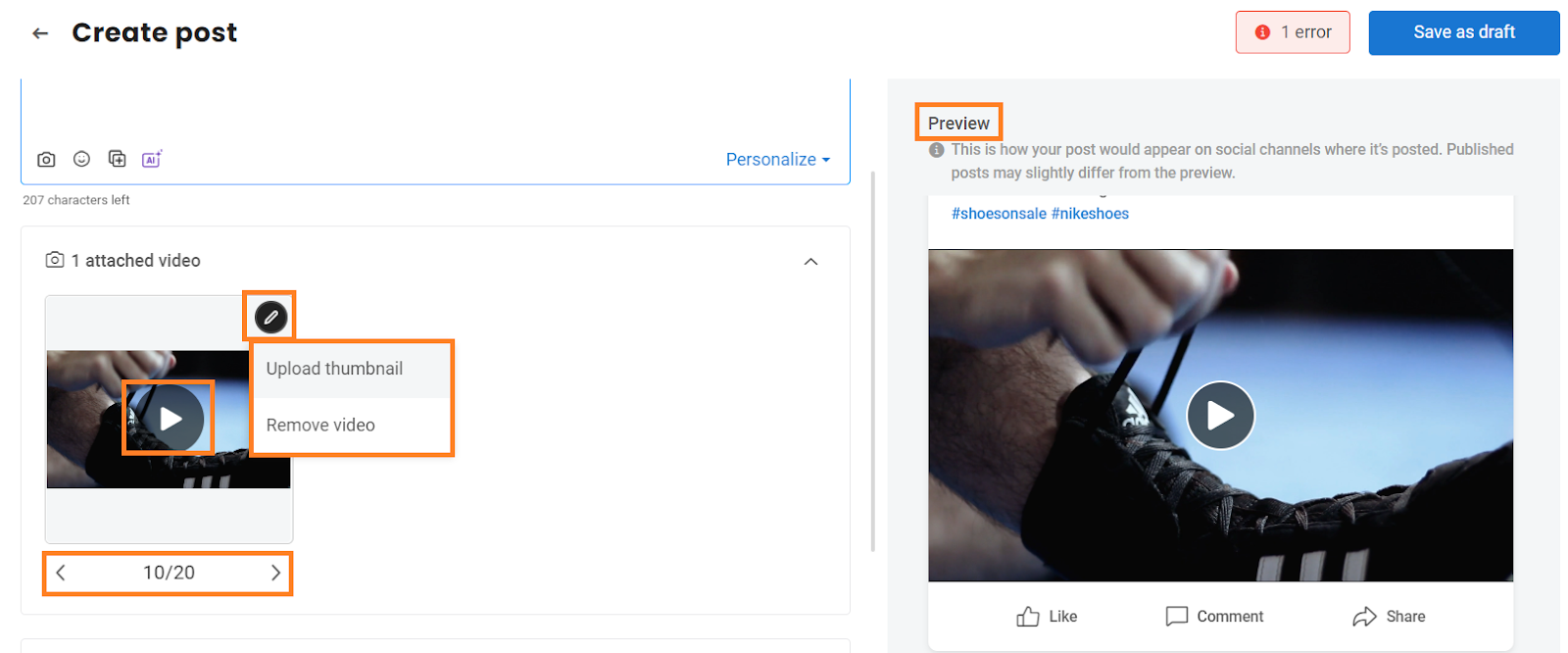
- Attach a video: click the camera icon → Computer → Add video. You can upload, add a thumbnail, or preview.
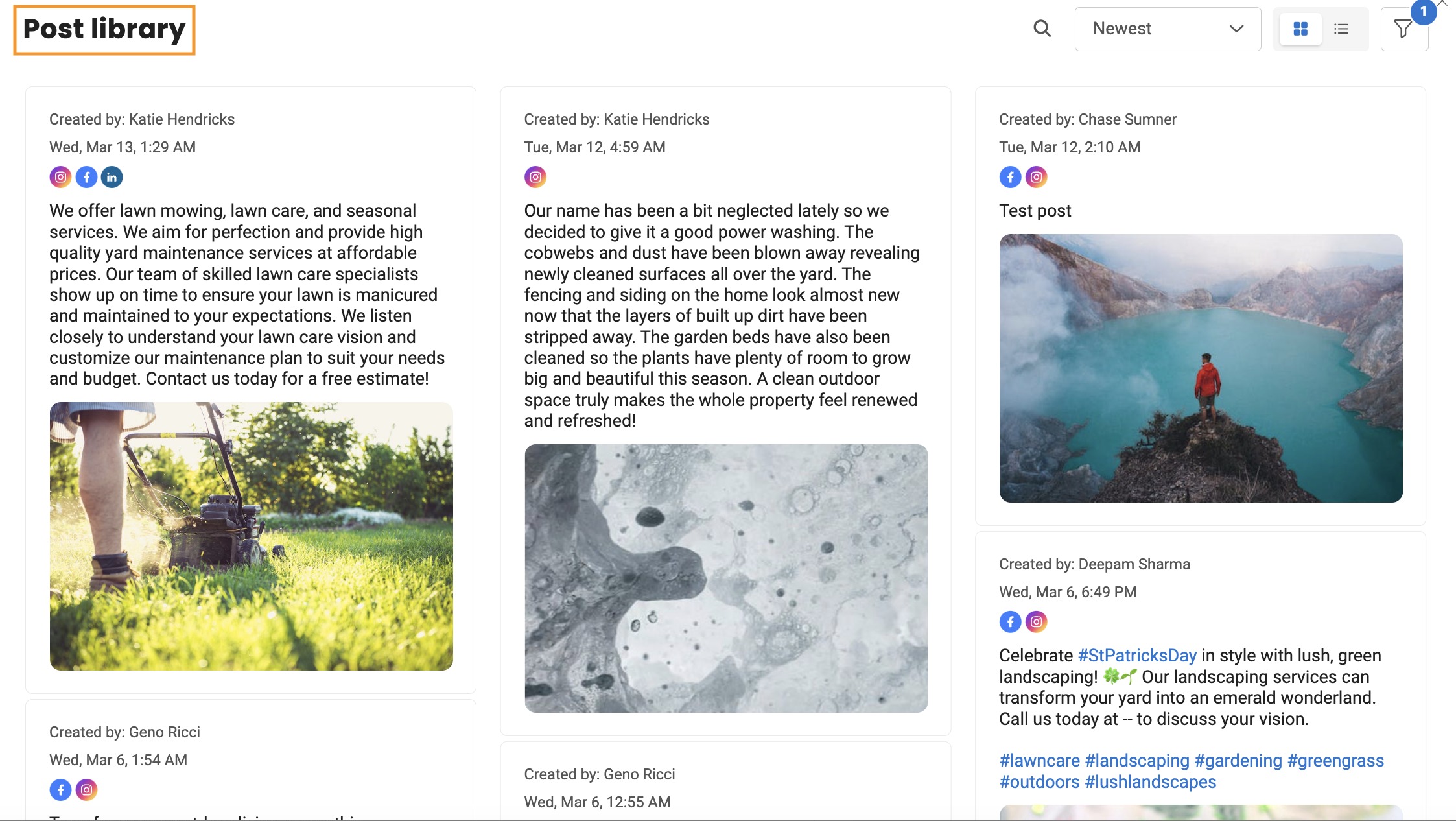
- Access the Post Library to reuse high-performing content. Edit or schedule directly.
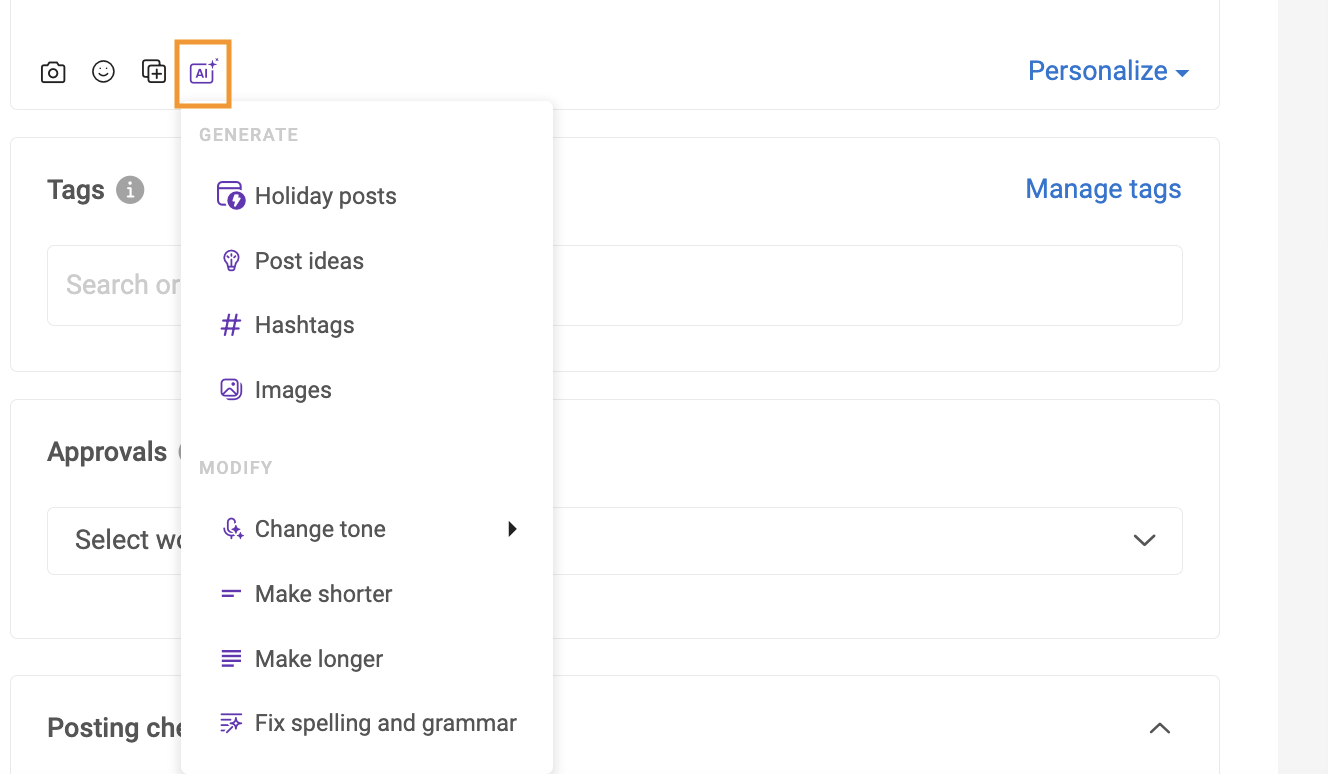
- Use the AI icon to generate posts, automate hashtags, or fix grammar.
- Create tags for social posts to categorize and locate them later.
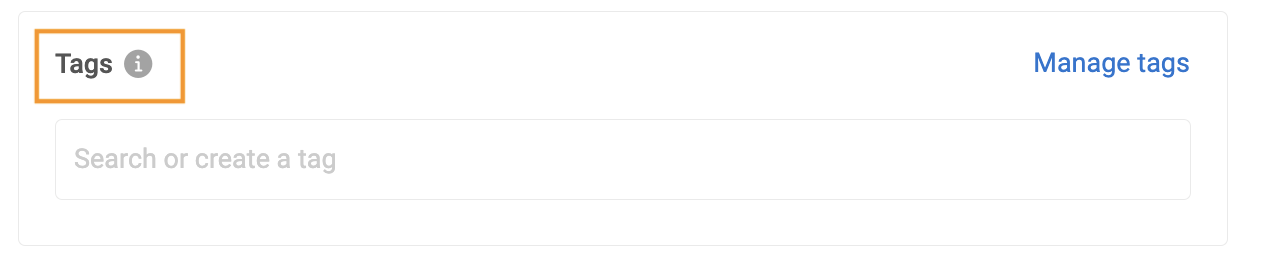 Provide a relevant tag name to the post under the tags section and click 'Create a tag'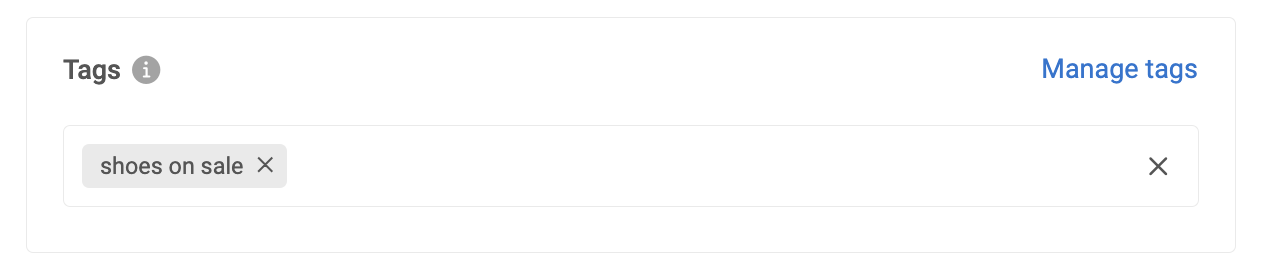
- Select an approval workflow to send posts for review before publishing.
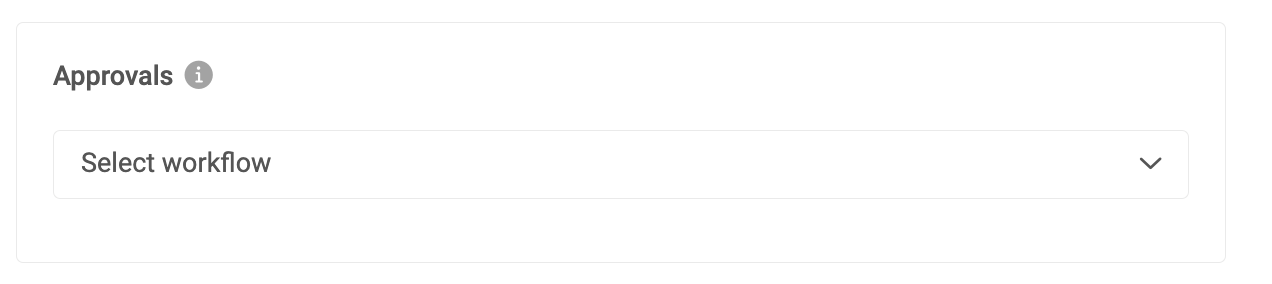 Click the dropdown button and select the team to send your social content to the approval team. Social posts can only go live after obtaining approval from designated approvers.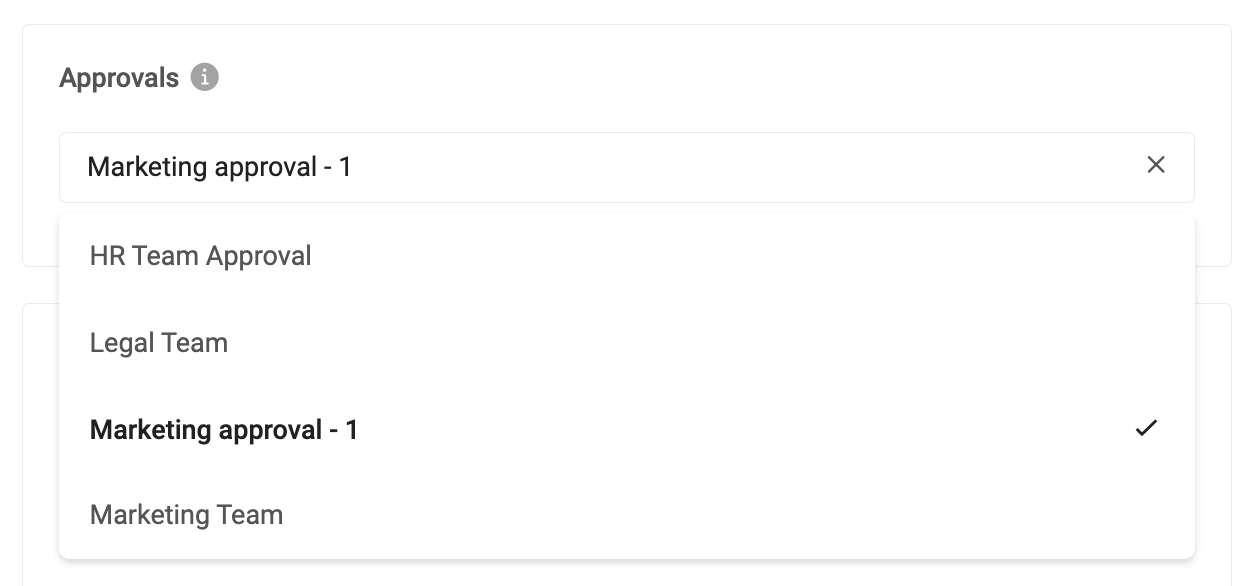
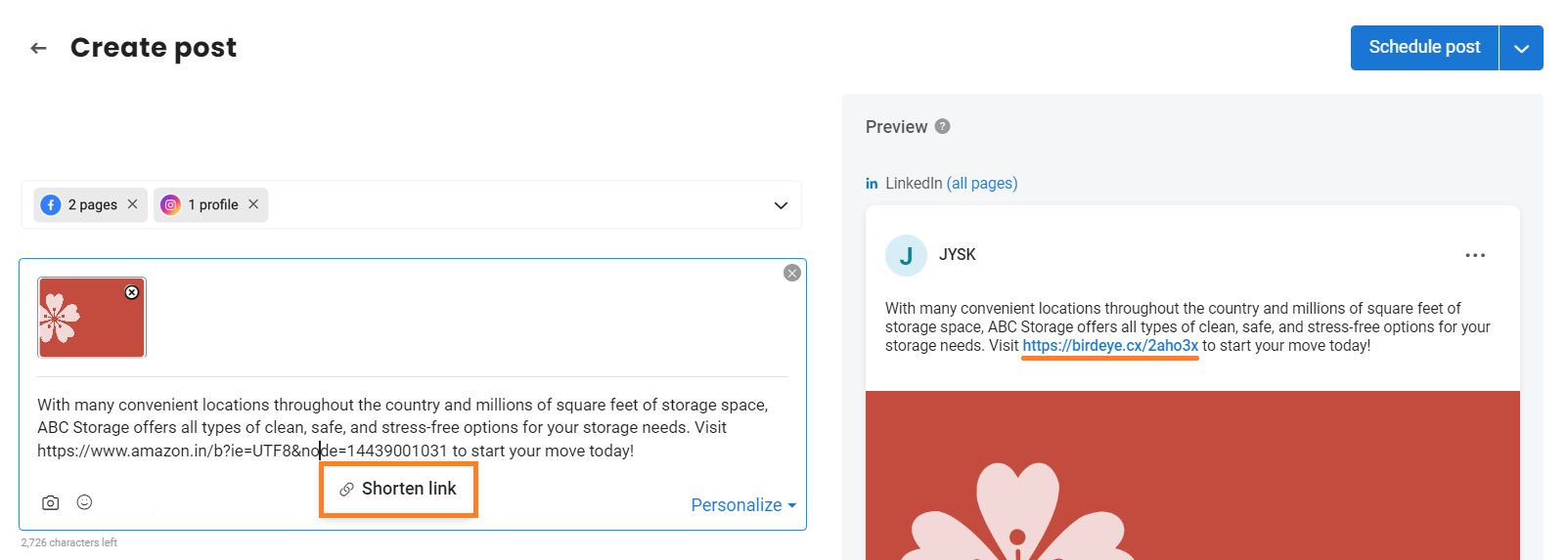
- Click a URL and choose “Shorten link” to simplify tracking links.
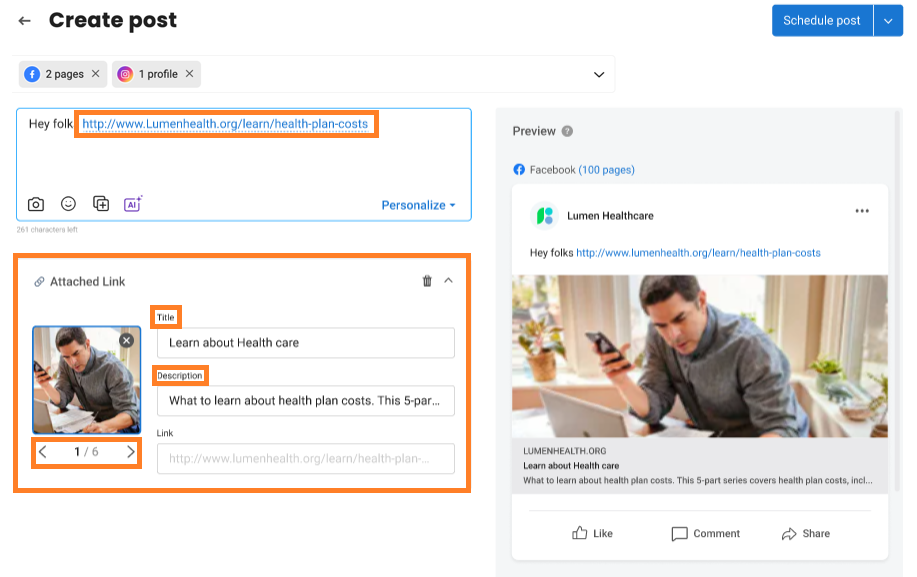
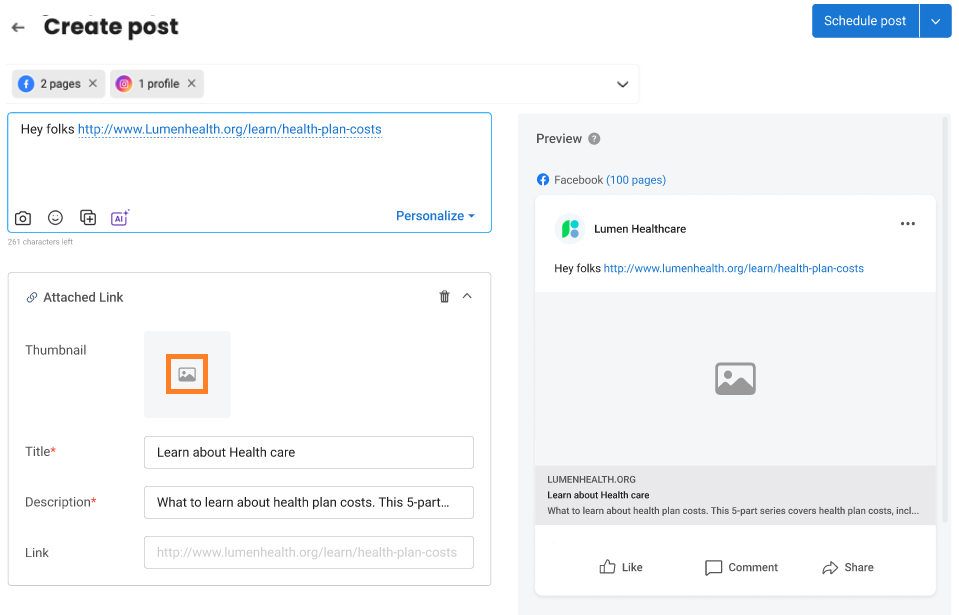
- Add a title and description for any attached links and select or upload a thumbnail.
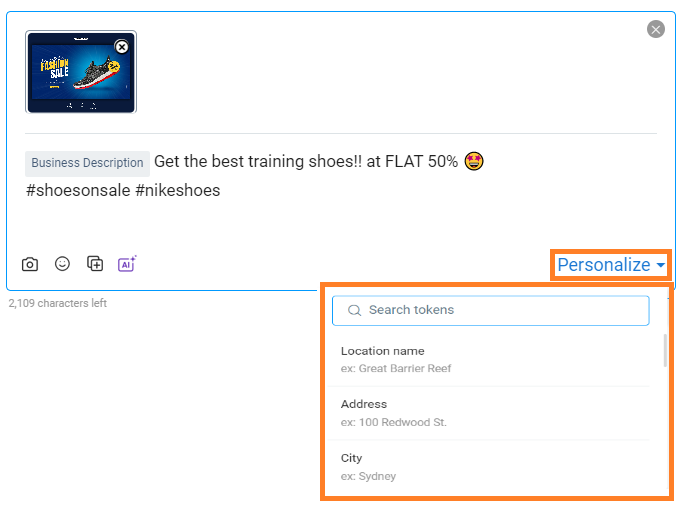
- (Optional) Click Personalize to automatically add location or state tokens.
scheduling posts
Use Birdeye’s built-in scheduler to plan posts in advance.
- Once your post is ready, click “Schedule Post.”
- Select the month, date, and time in the calendar, then click Schedule.
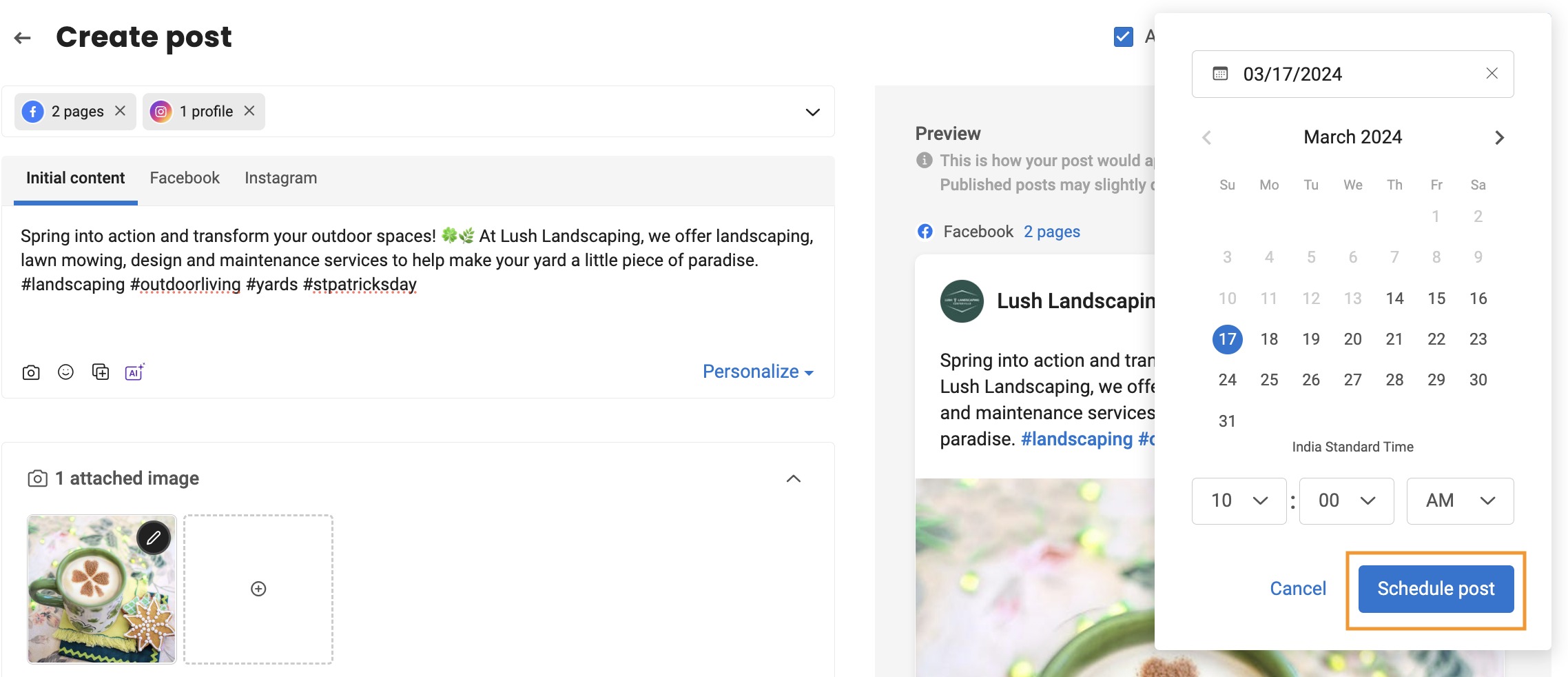
- To post immediately, choose Post Now from the dropdown.
- To save as a draft, select Save as Draft.

drafts
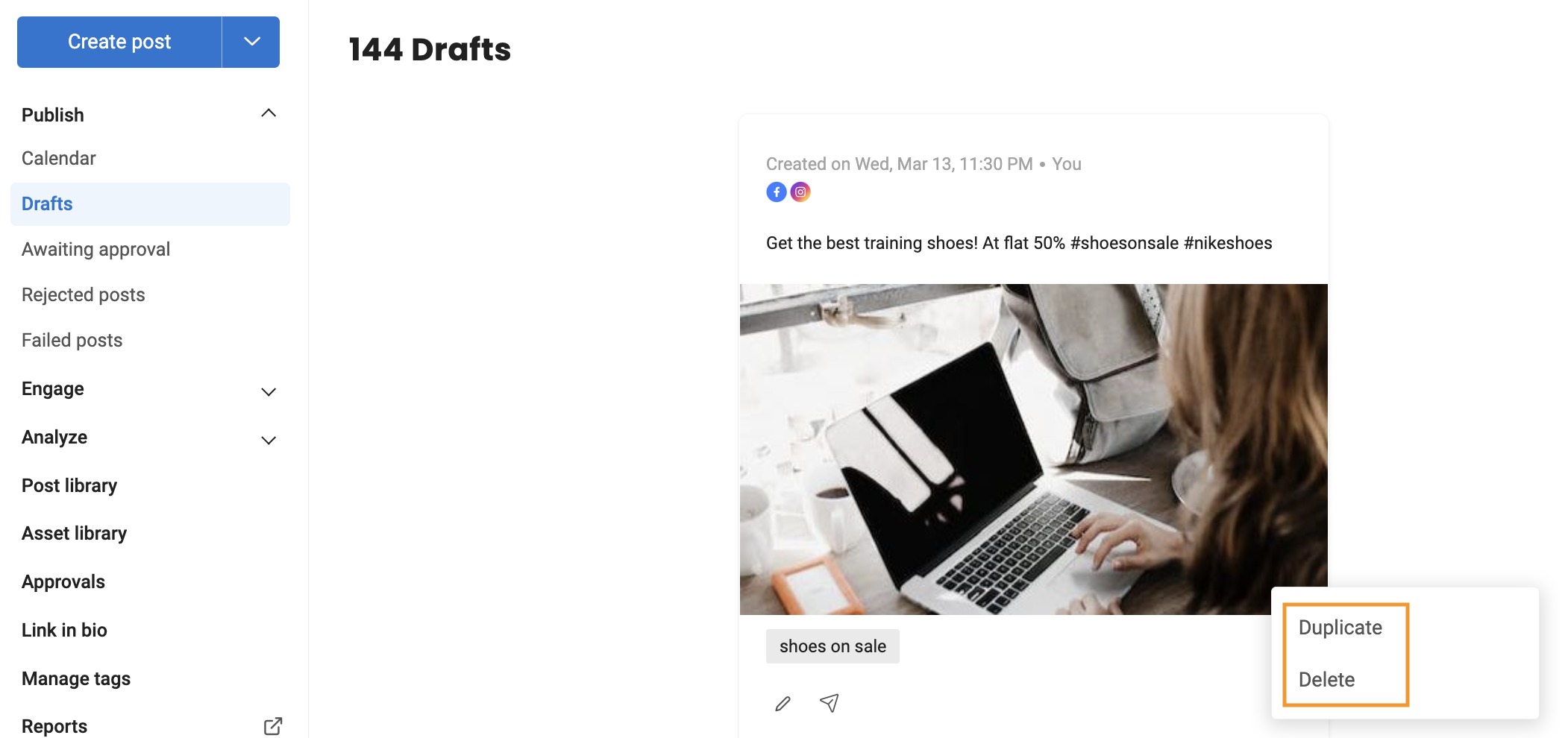
Drafts allow you to jot down ideas or unfinished posts for later editing. Access them anytime from the Drafts tab under Publish. You can edit, duplicate, or delete drafts.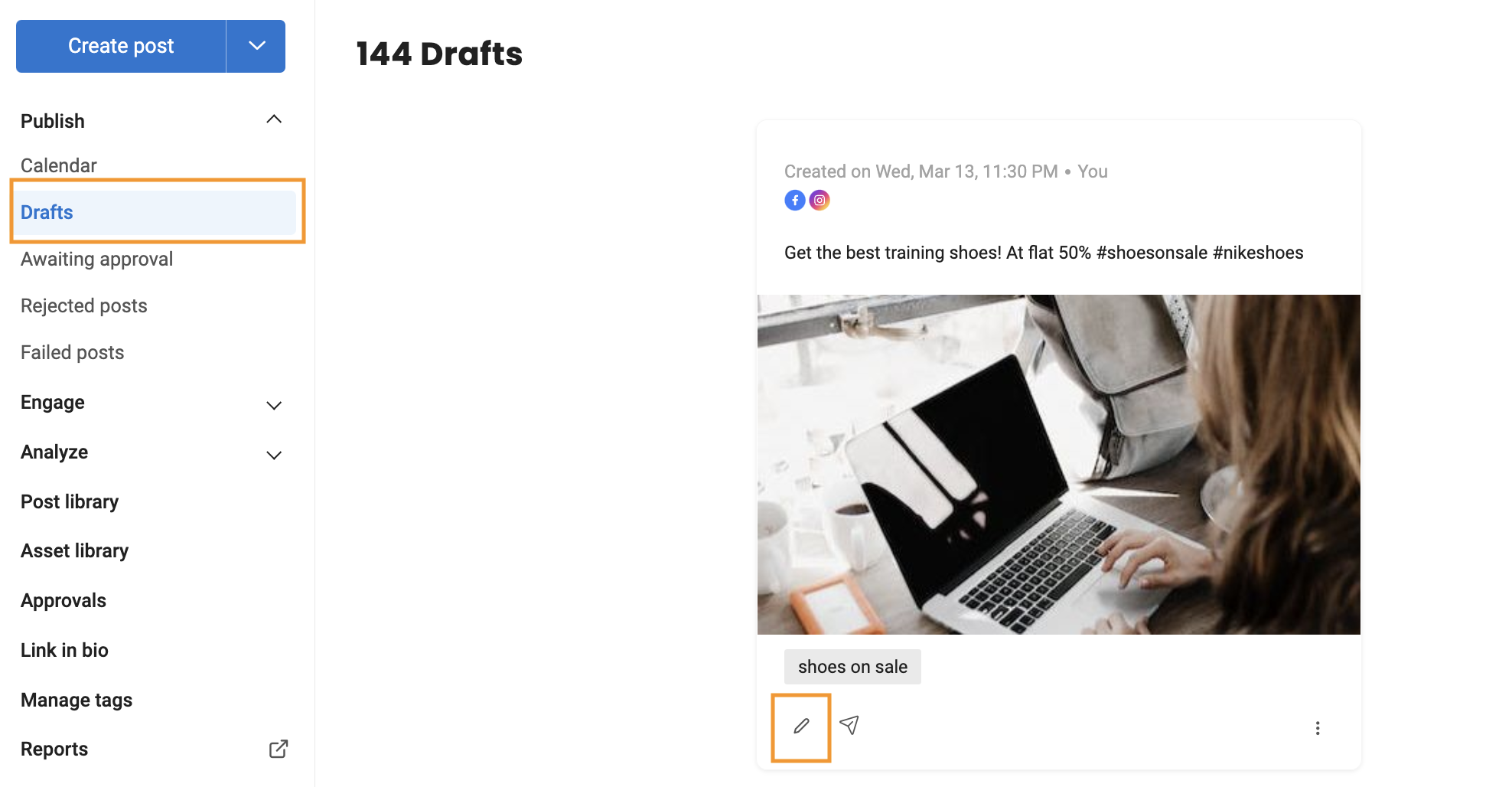
calendar view
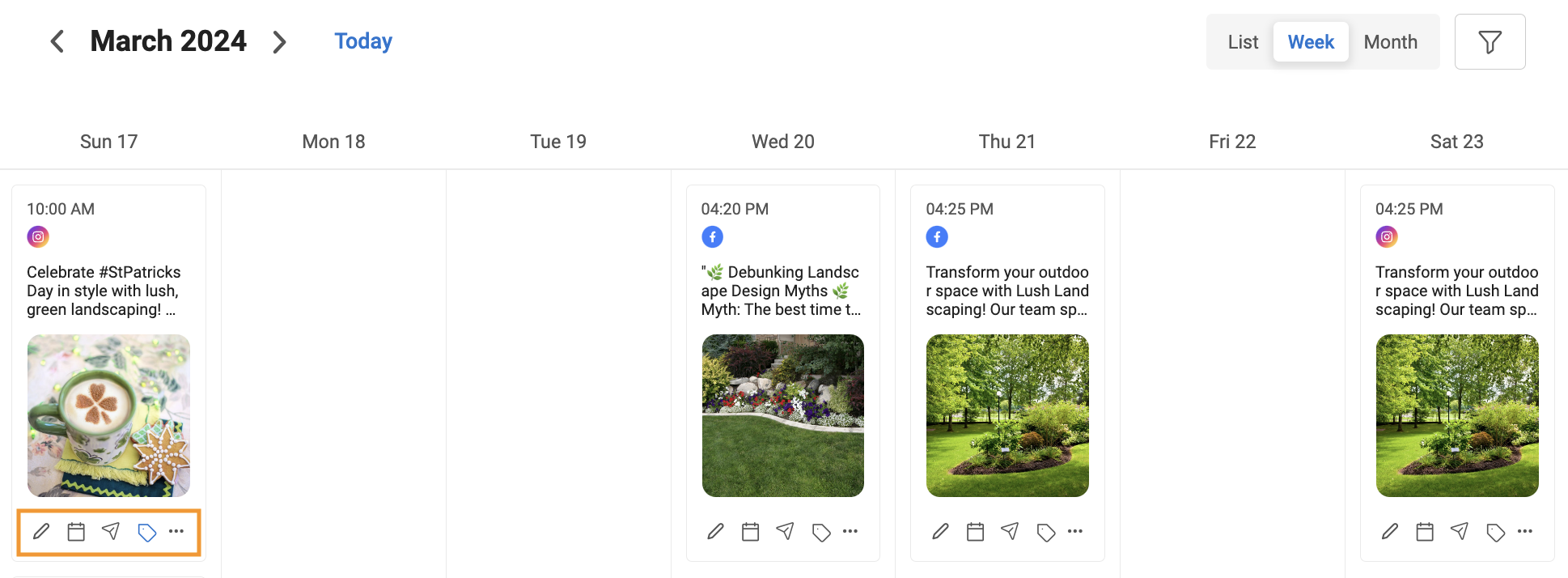
The Publish tab displays all posts in calendar view by week or month. Each post shows the publishing time and connected social channels. You can edit, reschedule, duplicate, delete, or chat with approvers directly from this view.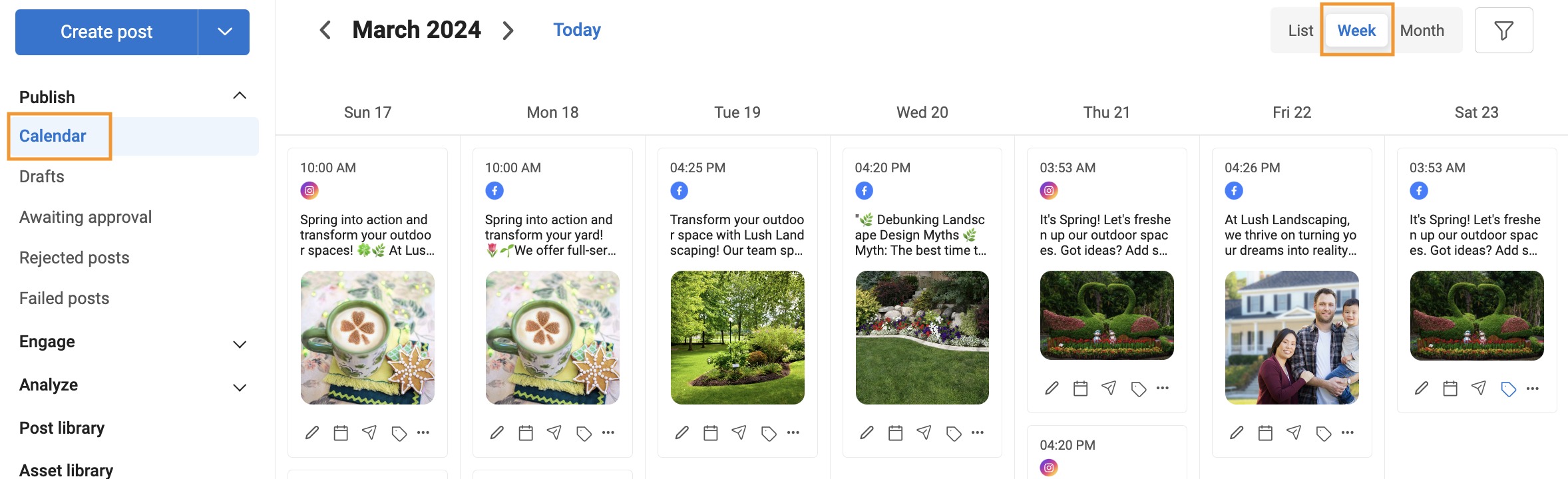
mobile app access
All key Birdeye features are available in the mobile app. Manage posts, respond to messages, and monitor performance on the go. Download from the App Store or Google Play.
© 2025 Orange Fish Consulting. All rights reserved.
Was this article helpful?
That’s Great!
Thank you for your feedback
Sorry! We couldn't be helpful
Thank you for your feedback
Feedback sent
We appreciate your effort and will try to fix the article