RealPage multi-factor authentication (MFA) adds a layer of security for access to RealPage Unified Platform. It requires users to provide two distinct types of evidence before they are granted access to the platform.
- At https://www.realpage.com, type your username, generally your email address, in the User Name field. To save your user name to the login page, select the Remember Me option.
- Click Next. If prompted, type your RealPage password.
- Click Login.
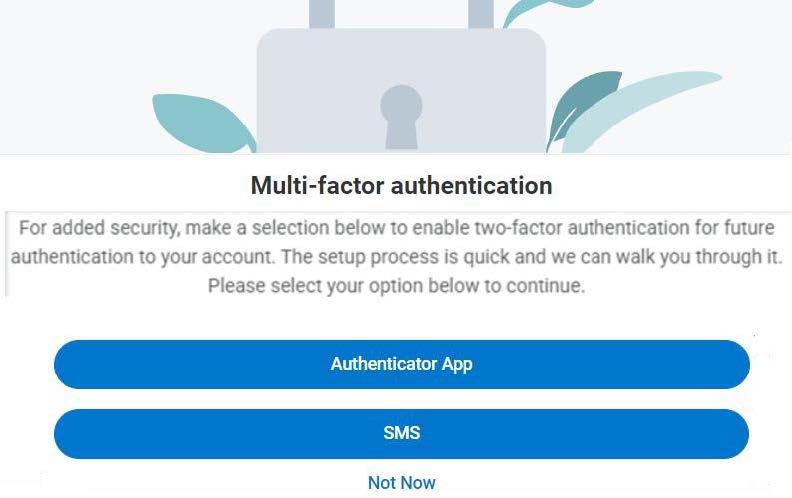
The first time you log in, you are prompted to set up RealPage multi-factor authentication (MFA). You may select either an authenticator app or SMS as your authentication method unless your company has opted out of SMS.
To set up MFA for your Unified Platform account during login:
- At https://www.realpage.com/home (https://www.realpage.com/), type your user name, typically your primary email address, and click Next.
- Enter your RealPage password and click Login. A message appears prompting you to set up MFA.
- Select Authenticator App or SMS as your authentication method. Both are available unless your company has opted out of SMS
Please see the full attached guide for additional details on each option provided and its set up steps.
Was this article helpful?
That’s Great!
Thank you for your feedback
Sorry! We couldn't be helpful
Thank you for your feedback
Feedback sent
We appreciate your effort and will try to fix the article